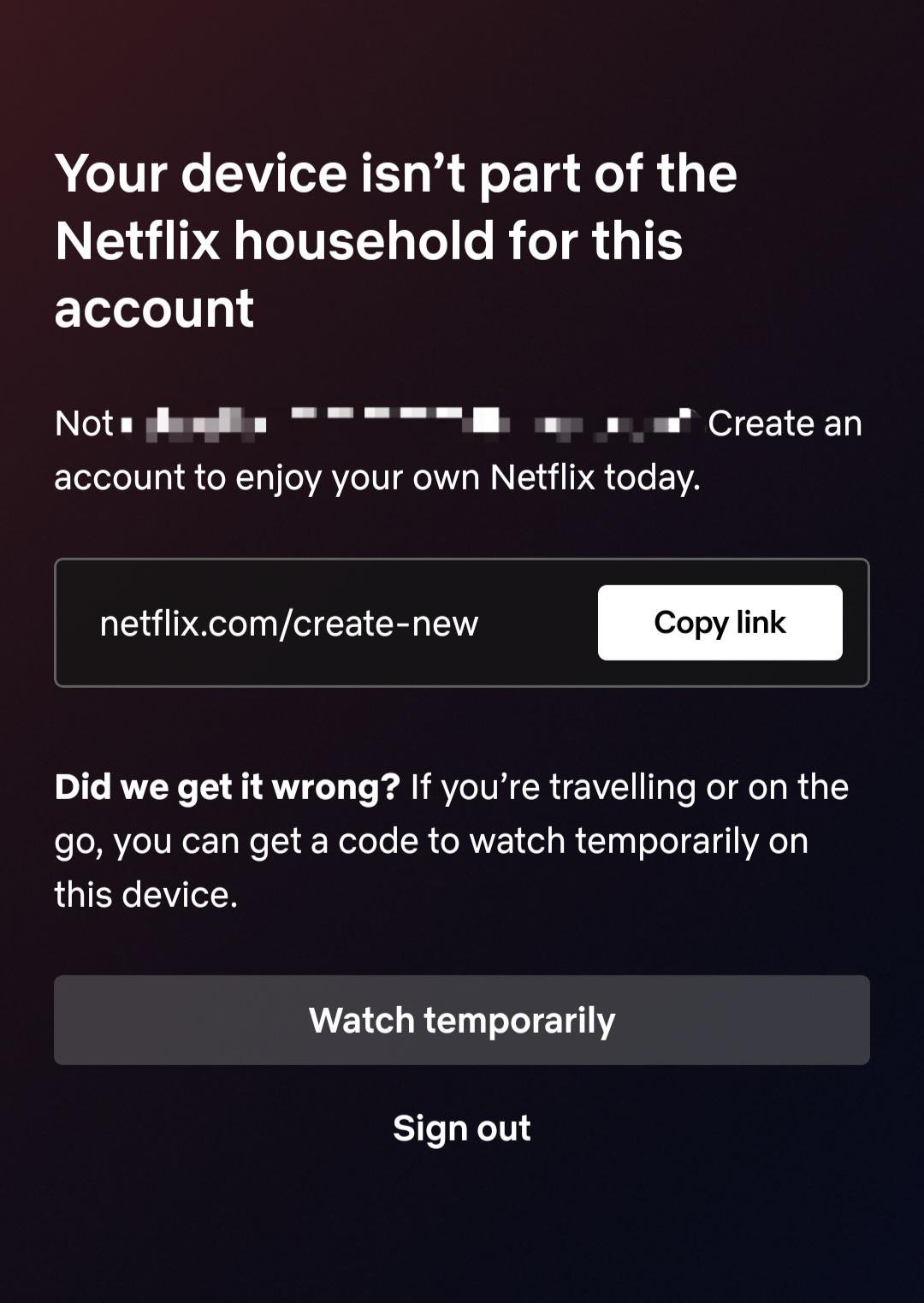
There’s nothing quite as frustrating as settling in for a night of binge-watching, only to be met with a cryptic message: the "Netflix Household Error." This isn't just a minor glitch; it's Netflix's way of enforcing its rules about who can share an account, and it can abruptly halt your streaming plans. If you've encountered this pop-up, you're not alone. In this comprehensive guide, we'll dive deep into understanding the Netflix Household Error, what triggers it, and, most importantly, how to get back to your favorite shows and movies with minimal fuss.
Think of this error as Netflix politely, but firmly, reminding you that your account is intended for people living together in one primary location. It’s designed to prevent widespread account sharing across different homes. While the intention is clear, the actual experience for users can be confusing, especially when legitimate household members travel or experience minor network changes.
At a Glance: Key Takeaways
- The Problem: Netflix’s system detects that your device isn't consistently connecting from the primary "Netflix Household."
- Why It Happens: Often due to using a different internet connection (e.g., mobile data, a friend's Wi-Fi, travel), or changes to your home's internet setup (new router, ISP changes).
- How Netflix Knows: It primarily relies on your device's IP address, device ID, and account activity patterns to determine if you're part of the designated home.
- Quick Fixes: Reconnect to your home Wi-Fi briefly, use email/QR verification, or simply log out and back in.
- Long-Term Solutions: Update your Netflix Household settings on your main TV, add an extra member (paid option), or use specific travel features.
- Important Caveats: VPNs won't bypass this, and unofficial browser scripts are risky and against terms of service.
- Best Practice: Ensure your primary TV is always set as the "Netflix Household" and connect all devices to that home Wi-Fi regularly.
The Root Causes: Why This Error Appears
Netflix has invested significantly in technology to ensure its service is used as intended—by people within a single physical household. When a device deviates from the established pattern of your primary home network, it triggers a verification process, which often manifests as the "Netflix Household Error." Let's break down the most common culprits:
1. You're on a Different Internet Connection
This is, by far, the most frequent reason. Your Netflix Household is tied to the primary internet connection (IP address) used by your main TV or streaming device. If you're trying to stream on a device that's currently connected to:
- A different Wi-Fi network (e.g., a friend's house, coffee shop, another family member's home).
- Mobile data (4G/5G hotspot).
- A hotel, airport, or public Wi-Fi network.
- Your office network.
…Netflix will flag it as being outside the designated household. It's expecting connections from a specific IP range associated with your home.
2. Your Home Network Changed Suddenly
Even if you haven't moved or changed your streaming habits, your home network itself might have changed in a way Netflix doesn't recognize. This can happen if:
- Your Internet Service Provider (ISP) changed your public IP address: Many ISPs use dynamic IP addresses, meaning your home's "internet identity" can shift without you doing anything.
- You got a new router or modem: This equipment change can alter how your network appears to Netflix, even if your Wi-Fi name and password remain the same.
- You reset your existing router/modem: Similar to getting new equipment, a reset can reconfigure network settings that Netflix uses for identification.
These changes can make your own home network look "new" or unfamiliar to Netflix's system, triggering the error.
3. Extended Absence from the Home Network
Devices that haven't connected from your primary Netflix Household's internet connection in a long time (weeks or months) may lose their "authorization." Netflix expects devices used by household members to check in periodically from the home network. If a device has been exclusively used elsewhere for an extended period, it might get prompted for verification.
4. Logging In from an Unrecognized Device
Attempting to log in or stream from a brand-new device—like a recently purchased smart TV, a new streaming stick, or a PC you haven't used for Netflix before—can trigger the error. Netflix needs to verify that this new device belongs to your household before granting full access. This often happens on TVs and streaming boxes more strictly than on web browsers or mobile apps.
5. Other Account Activity is Causing Suspicion
Sometimes, it's not just your device. If other members of your household are logging in from vastly different locations, or if there's unusual concurrent activity, Netflix might tighten its verification for all linked devices. This is part of their broader effort to prevent widespread unauthorized sharing.
6. IP Address or Device ID Mismatch
At a technical level, Netflix's system is constantly comparing your device's current IP address and unique device ID with its historical connection patterns. Any significant mismatch or inconsistency can raise a red flag, leading to the household error.
Navigating the Fixes: Your Toolkit for Resolution
When the "Netflix Household Error" strikes, you want solutions, not more confusion. Here’s a breakdown of methods, from quick temporary workarounds to more permanent adjustments, that will help you restore your streaming access.
Immediate Relief: Temporary Streaming Solutions
These methods are often quick and can get you back to streaming in minutes, especially if you're away from home or experiencing a temporary hiccup.
1. Reconnect to Your Primary Home Wi-Fi (The Golden Rule)
This is the most reliable and often easiest temporary fix if you're able to do it.
- How it works: If your device is currently on a different network, connect it back to the Wi-Fi network associated with your primary Netflix Household.
- Action: Open Netflix on the device, play any show or movie for a few seconds. This action re-authorizes the device with Netflix's system, linking it back to your home IP address.
- Benefit: Once re-authorized, the device should be able to stream from other locations for a limited time (often a few weeks) before needing to check in again.
2. Verify Device via Email or Text
Netflix often provides a direct verification option when the error appears.
- How it works: The system will prompt you to verify the device, usually by sending a link to the account owner's email address or a code to their registered phone number.
- Action: The account owner needs to open that link or enter the code. This grants temporary access for the device.
- Benefit: Ideal for travelers or family members temporarily away from home. The link usually provides several days or weeks of access.
3. Refresh Your Session: Log Out and Log Back In
Sometimes, a simple reset is all it takes to clear a temporary glitch.
- Action: On the affected device, log out of your Netflix account completely. Then, log back in using your credentials.
- Benefit: This forces a fresh handshake between your device and Netflix's servers, which can sometimes resolve minor recognition issues.
4. "Traveling Mode" or Temporary Access Option
Netflix has rolled out features specifically for those on the go.
- How it works: When the error appears, look for an option that says something like "I'm traveling" or "Get temporary access."
- Action: Selecting this option (and often verifying via email/text) grants short-term streaming privileges for devices outside the household.
- Benefit: This is an official Netflix solution for legitimate travel, ensuring you don't miss out on content while away.
5. Restart Your Home Router (If Error Occurs at Home)
If you're at home and suddenly get the error, your router might be the culprit.
- How it works: Restarting your router can force your Internet Service Provider (ISP) to assign a new public IP address, or simply re-establish a stable connection that Netflix recognizes.
- Action: Unplug your router and modem (if separate) from power, wait 30 seconds, then plug them back in. Wait for all lights to stabilize before trying Netflix again.
- Benefit: Can resolve issues caused by a dynamic IP change or a network hiccup that made your home network appear unfamiliar.
6. Try Web Browser or Mobile App
Netflix's enforcement of household rules is often stricter on smart TVs and dedicated streaming boxes compared to web browsers or mobile apps.
- Action: If you're getting the error on your TV, try accessing Netflix on a laptop/desktop browser or through the Netflix app on your smartphone or tablet.
- Benefit: You might find that these platforms offer more flexibility or don't trigger the error as readily, providing a workaround for immediate viewing.
Long-Term Harmony: Official & Sustainable Solutions
For a more permanent resolution and to prevent recurring errors, these official methods will help you solidify your Netflix Household settings.
1. Update or Set Your Netflix Household on Your Main TV
This is the cornerstone of Netflix's household policy. Your main TV or streaming device connected to your primary home internet connection is considered the anchor for your Netflix Household.
- How it works: Netflix links your account to the IP address of the internet connection your main TV is using.
- Action:
- Ensure your primary TV (the one you watch most often at home) is connected to your home Wi-Fi.
- Open Netflix on that TV.
- If prompted, follow the instructions to "Update Your Netflix Household" or "Set Your Netflix Household." You might find this option in your Netflix settings menu under "Manage Netflix Household."
- Sometimes, this involves scanning a QR code with your phone or verifying via email. Ensure your phone is on the same home Wi-Fi when scanning for smooth verification.
- Benefit: This securely ties your account to your current home network, authorizing all devices on that same network.
2. Manage Devices and Re-Sign In
Over time, you might have old devices still logged into your account. Cleaning these up can prevent confusion. You can manage managing authorized devices directly from your account.
- How it works: Removing old devices and re-logging in on current ones ensures a clean slate and re-establishes their connection to your designated household.
- Action:
- Go to your Netflix account settings on a web browser.
- Look for "Security & Privacy" or "Manage Access & Devices."
- Review the list of devices. Sign out any devices you no longer use or don't recognize.
- On your primary devices, log out of Netflix, then log back in.
- Benefit: This helps Netflix identify and prioritize your current, active devices within your household.
3. Update Household Settings After Major Changes
Did you just move? Change Internet Service Providers (ISP)? Get a new router or modem? These are major network changes that require a household update.
- Action: Follow the steps under "Update or Set Your Netflix Household on Your Main TV" immediately after any of these changes. You may also need to verify your email and phone number within your Netflix account settings to receive any necessary confirmation codes.
- Benefit: Proactively informing Netflix of your new network setup prevents future errors.
4. Route Connection Through Home Wi-Fi (Advanced)
For tech-savvy users, it's possible to create a virtual bridge to your home network.
- How it works: Using remote tunneling software (e.g., a self-hosted VPN server on your home router, or a service like Tailscale/ZeroTier), you can route your device's internet traffic through a computer or server left running at your actual home.
- Action: Configure a remote device (e.g., a laptop you travel with) to connect to your home network via this tunnel. Netflix will then perceive your device as being on your home Wi-Fi.
- Benefit: Allows legitimate household members to access Netflix from afar, as if they were physically home. This is distinct from commercial VPNs.
5. Add an Extra Member (Official Paid Option)
If you have family or friends who legitimately live elsewhere but want to share your Netflix account, this is Netflix's official, sanctioned solution.
- How it works: Netflix allows primary account owners to add "extra members" to their plan for an additional monthly fee.
- Action:
- Go to your Netflix account settings on a web browser.
- Look for "Extra Members" or "Manage Extra Members" under your plan details.
- Follow the steps to invite and add an extra member. They will receive their own sub-account and login.
- Benefit: This provides a legal, long-term solution for sharing with someone outside your immediate household, without triggering any errors. Each extra member gets their own profile, password, and the ability to stream concurrently.
Important Considerations & Common Misconceptions
Navigating the Netflix Household Error can be confusing, and there's a lot of misinformation out there. Here's what you absolutely need to know:
VPNs Cannot Bypass the Netflix Household System
This is a critical point that many users misunderstand.
- The Myth: "Just use a VPN to make Netflix think I'm home!"
- The Reality: Commercial VPNs change your apparent geographical location by routing your traffic through a server in a different city or country. However, the Netflix Household Error is not triggered by your geographical location. It's triggered by whether your device is on the actual home internet network (identified by its unique IP address and device fingerprint) that Netflix has registered as your primary household. A VPN cannot magically put your device onto your specific home Wi-Fi network; it simply routes your traffic from wherever you are, through a VPN server, to Netflix. Netflix's system will still detect that your device is not connecting from the designated home IP, even if the VPN masks your true location.
- The Takeaway: Don't waste your time or money on commercial VPNs specifically to bypass this household verification. They are designed for geo-unblocking content, not for impersonating your home Wi-Fi network.
Unofficial Browser Scripts and Workarounds: A Risky Endeavor
You might stumble upon forum discussions or websites recommending unofficial browser extensions or scripts (e.g., for Tampermonkey) that claim to hide or bypass the Netflix Household verification pop-ups.
- The Risk:
- Violation of Terms of Service: Using such scripts directly violates Netflix's Terms of Service, which can lead to account suspension or even termination.
- Security Vulnerabilities: These scripts are often developed by unknown third parties. Installing them grants them access to your browsing data and potentially your Netflix account information, posing significant security and privacy risks. You could expose yourself to malware, phishing, or data theft.
- Not a Real Fix: These scripts are often temporary patches that simply hide the warning, rather than resolving the underlying verification issue. Netflix's system will still be flagging your device, potentially leading to more persistent issues or a complete lockout later.
- The Takeaway: Avoid these unofficial workarounds. They are not secure, not supported by Netflix, and could jeopardize your account and personal data. Stick to the official solutions provided by Netflix.
Preventive Measures: Best Practices to Avoid Future Headaches
The best way to deal with the Netflix Household Error is to avoid it altogether. By following these simple best practices, you can ensure smooth, uninterrupted streaming for everyone in your household. If you're encountering the error often, it might be time to review your troubleshooting your home Wi-Fi setup.
- Keep Your Primary TV Connected and Set as the Household Anchor:
Ensure the main TV or streaming device that is most consistently used at your primary residence is always connected to your home Wi-Fi. Periodically (e.g., once a month), open Netflix on this device and confirm or update your Netflix Household settings if prompted. This reinforces your home network's identity with Netflix. - Connect All Household Devices to Home Wi-Fi Regularly:
Encourage everyone using the account to connect their devices (phones, tablets, laptops, other streaming sticks) to your primary home Wi-Fi network at least once a month. Open Netflix and play something for a few seconds. This helps Netflix re-authenticate these devices as part of your household, extending their temporary authorization for off-network use. - Update Household Settings After Network Changes:
Whenever you change your Internet Service Provider (ISP), get a new router/modem, or perform a factory reset on your networking equipment, immediately go to your main TV and update your Netflix Household settings. This proactive step prevents the error from appearing due to a sudden network identity change. - Regularly Manage Access & Devices:
Periodically review the "Manage Access & Devices" section in your Netflix account settings. Sign out any old, unused, or unrecognized devices. This keeps your account clean and focuses Netflix's authentication on your active household devices. - Keep Contact Information Up-to-Date:
Ensure the email address and phone number associated with your Netflix account are current and easily accessible. These are often used for verification codes when you or a household member needs to temporarily access Netflix from outside the home, or when setting up a new device. - Utilize Netflix's Official Travel Options:
When planning to stream Netflix while away from home, familiarize yourself with Netflix's official temporary access or "travel mode" features. These are designed for legitimate travel and offer a supported way to continue streaming without triggering errors. For those who frequently travel or have family in different locations, streaming Netflix while traveling effectively means leveraging these temporary options or considering the Extra Member feature.
By adopting these habits, you can significantly reduce the likelihood of encountering the Netflix Household Error, ensuring your streaming experience remains seamless, whether you're at home or legitimately on the go.
Untuk pemahaman lebih lengkap, baca panduan utama kami: how to bypass Netflix household error